Sheets
Sheets are Mind One’s master data tables. Each sheet belongs to a workspace and stores structured records with validation, versioning and optional syncing to data warehouses.
Creating a sheet
There are two ways to create a sheet: from an Excel/CSV file (recommended) or manually.
From an Excel or CSV file
On the Sheets page you’ll find a drop zone right below the table:
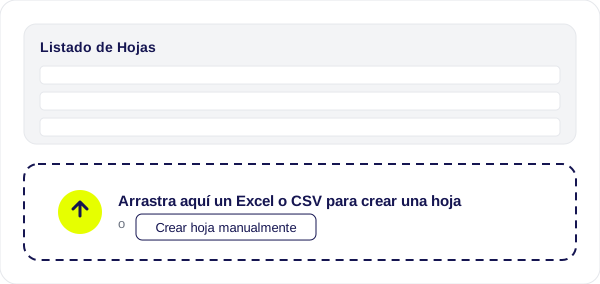
- Drag an
.xlsx,.xlsor.csvfile (or click to select one). - The First Steps wizard opens with the file already loaded: if the Excel file has multiple tabs, you choose which one to use.
- The wizard detects the columns and suggests a data type for each one (text, number, currency, date…); you can adjust them and enable the suggested value lists.
- Choose the destination workspace and the wizard creates the sheet and imports the data.
Manually
- From the sidebar, go to Sheets.
- Click Create sheet.
- Fill in the details:
- Name: the sheet’s identifier.
- Description: the purpose of the data.
- Workspace: select the containing workspace.
- Group (optional): assign it to one or more groups.
- Table Code (optional): the table’s code in the data warehouse (auto-generated from the name if not specified). Letters, numbers and underscores only; must start with a letter.
- Define the sheet’s fields (or inherit them from the workspace).
- Optionally, define cross-field validation rules.
- Confirm the creation.
Fields
Each sheet field is configured with:
| Property | Description |
|---|---|
| Name | The field’s visible name |
| Type | string, number, currency, boolean, date, email, url |
| Required | Whether the field is required to save a record |
| Unique | Whether the value must be unique across the whole sheet |
| Column Code | The column’s code in the data warehouse |
| Value list key | Link to a value list for dropdown options |
| Validation | Min, max, regex pattern, allowed options |
| Partition | Segments the sheet through a dropdown combobox with the available values |
| Currency format | Currency columns only: the column’s display mask (defaults to the user’s format) |
Currency type
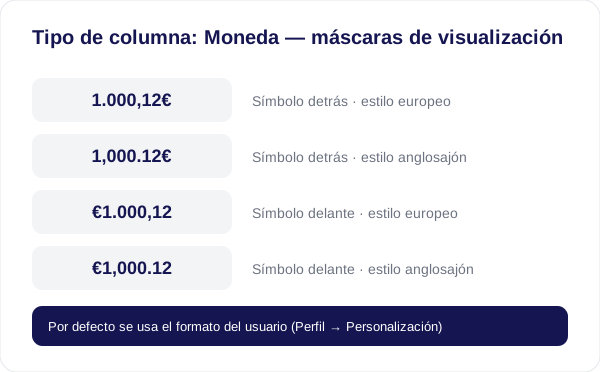
Currency-type columns store the pure numeric value and apply a display mask only on screen:
1.000,12€·1,000.12€·€1.000,12·€1,000.12- If the column doesn’t define a mask, the user’s currency format is used (Profile → Personalization).
- When editing, the cell accepts either input style (with or without a symbol) and stores the pure number.
- A column’s type can be switched between Number and Currency at any time, even if the column has data (they share the same value domain).
Number-type columns also respect the user’s format: decimal separator (comma or point) and an optional thousands separator.
Partitions
A field can be configured as a partition, letting you segment the sheet. The partition field appears as a dropdown combobox at the top of the sheet with all the values available in the source, and selecting a value filters the corresponding view. Partitions get their values from:
- Value list: values from a static or dynamic list.
- Another sheet: values from a column in another sheet.
- Free: any value is accepted.
Validation
Field validation
Each field can have individual validation rules:
- Format: a regex pattern the value must match.
- Range: minimum and maximum values for numeric or date fields.
- Options: a set of allowed values.
- Required: the field can’t be empty.
- Uniqueness: the value can’t be repeated in the sheet.
Editing data
Editing in the interface
The sheet is presented as a spreadsheet-like table. You can:
- Add records directly.
- Edit individual cells.
- Changes are validated in real time.
- Saving applies all modifications and creates a new version.
Locking
Mind One uses pessimistic locking to prevent concurrent edits:
- Opening a sheet for editing automatically acquires a lock.
- The lock has a TTL (time to live) and is renewed via heartbeat while the user is active.
- If the user disconnects (closes the tab, loses the WebSocket connection), the lock is released automatically.
- Other users can see who holds the lock and when it expires.
- Administrators can force an unlock.
Import/Export
Importing from Excel
- Download template: get an Excel file with the sheet’s correct structure (columns, types, validations).
- Fill in the data: complete the template with your data.
- Import: upload the file and select the mode:
- Replace: replaces all existing data.
- Append: adds the new records without removing existing ones.
- Upfront validation: Mind One validates the data before applying it. Errors are shown per cell with the specific message.
- Apply: if validation passes, the data is imported.
For large imports, the process runs as an asynchronous job and you can check its progress.
Exporting to Excel
Download the whole sheet as an Excel (.xlsx) file with options:
- Enabled dropdowns: cells with value lists include Excel data validation.
- Value list display: export the value (key) or the label.
Versioning
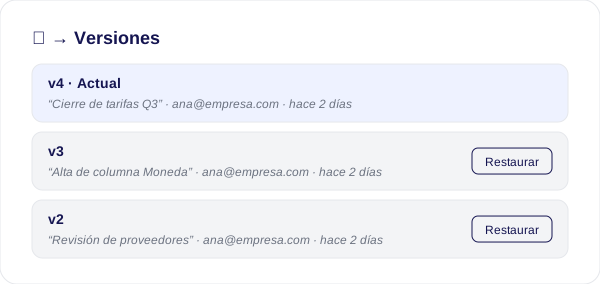
Every time schema changes are saved on a sheet, the version number is automatically increased and a snapshot of the previous version is kept.
- Approve with a comment: clicking Save and Approve opens a dialog where you can add an optional comment attached to that version.
- Version history: the sheet’s ⋯ → Versions menu lists every version with its author, date, number of fields/rows and the approval comment. From there you can restore a previous version.
Autosync
If the sheet has autosync configured (its own or inherited from the workspace), saving data can trigger an automatic sync with the data warehouse. The sync status is shown as:
- Syncing: sync in progress.
- Synced: sync completed.
- Skipped: not synced (no connection configured).
- Error: the sync failed (the error is shown).
Search
The sidebar’s search finds workspaces, groups and sheets by name, and also finds sheets by the name or code of their columns: searching for CustomerVatId will surface sheets that have that column even if their name doesn’t match.
Permissions
Sheets inherit the workspace’s security: any workspace member sees all its sheets (read access), and members with a workspace role other than viewer can also edit them. In addition:
- Admin and Modeller see every sheet in the tenant.
- The tenant owner sees and accesses everything, even if their global role isn’t admin.
- Direct per-sheet permissions and group membership keep working as additional access paths.
By platform-wide role:
| Action | Admin | Modeller | Contributor | Data Explorer / Data Viewer |
|---|---|---|---|---|
| View | ✓ | ✓ | ✓ (assigned or from their workspaces) | ✓ (assigned or from their workspaces) |
| Create | ✓ | ✓ | — | — |
| Edit data | ✓ | ✓ | ✓ | — |
| Manage schema | ✓ | ✓ | — | — |
| Delete | ✓ | ✓ | — | — |
| Import Excel | ✓ | ✓ | ✓ | — |
| Export | ✓ | ✓ | ✓ | ✓ |
Related
- Workspaces — Sheets belong to workspaces and inherit their schema.
- Value Lists — Link value lists to sheet fields.
- Groups — Group related sheets together.
- Connections — Sync data with data warehouses.