Configuration
The configuration section lets administrators adjust the tenant’s parameters, manage the subscription, monitor resource usage and manage API keys.
Access it from the user menu: Account Settings.
General settings
From Account Settings > General you can configure:
- Account name: the organization’s name shown in the platform.
- Timezone: the tenant’s default time zone.
- Language: the interface language (Spanish or English).
Billing
From Account Settings > Billing you manage the tenant’s subscription.
Available plans
Mind One offers subscription plans with different resource levels:
- Each plan defines limits for workspaces, sheets and users.
- Plans are billed monthly or annually (with a discount for annual billing).
- New tenants get a free trial period (14 days by default).
- Catalog prices are shown tax-excluded; the applicable VAT is added at checkout and broken down in the purchase dialog.
Billing details
Tax details are filled in in two steps:
- Company and Tax ID: legal name and tax identification. On continuing, Mind One checks whether the customer already exists in the billing system and, if found, preloads their address automatically.
- Billing address: address, city, postal code, country and — for Spain — the autonomous community (determines the applicable VAT regime).
Once saved, the legal name and Tax ID are locked (contact support to change them); the address can be modified with the Edit address button.
Taxes
The tax regime is determined automatically from the billing address:
| Territory | Tax applied |
|---|---|
| Mainland Spain and the Balearic Islands | 21% VAT |
| Canary Islands, Ceuta and Melilla | Export — 0% VAT |
| European Union | Intra-community services VAT — 0% |
| Rest of the world | Export — 0% VAT |
Payments and invoices
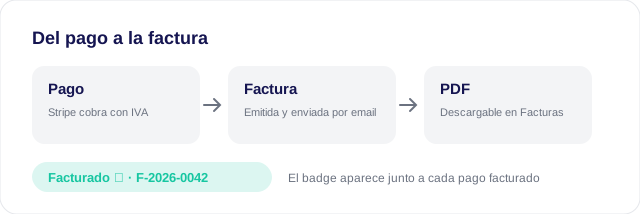
- Payment history: each payment shows its amount, card and status; once an invoicing document exists, the Invoiced ✓ badge appears with its number.
- Invoices: tax documents are issued automatically when each payment is confirmed (if the billing details are complete) and sent by email. From the Invoices card you can download the PDF of each document.
- Plan change: the dialog shows the proration with the VAT breakdown; on confirming, the charge and its invoice are issued immediately.
- Cancel subscription: cancels the active subscription (effective at the end of the period).
Resource usage
From Account Settings > Usage you can monitor the tenant’s current consumption:
- Number of workspaces created vs. the plan’s limit.
- Number of sheets created vs. the plan’s limit.
- Number of active users vs. the plan’s limit.
When a resource reaches the plan’s limit, the platform shows an alert and blocks the creation of new resources of that type.
API Keys
API Keys are per user: each user generates and manages their own from Profile > API Keys (they no longer live in the account configuration). Each key inherits its user’s role, which determines what operations it allows in the public API and the MCP:
Creating an API Key
- Click Create API Key.
- Give it a descriptive name.
- The key is generated and shown once. Copy it and store it securely.
Using API Keys
The public API allows programmatic access to workspaces, sheets, groups, value lists and account information.
API documentation
You can find the API documentation at: API Documentation.
Revoking an API Key
API keys can be revoked at any time. Once revoked, all requests using that key will be rejected.
Permissions
Only the Admin role can access and modify the tenant configuration.
Related
- Users and Roles — Managing users and permissions.
- Security — Security policies.